
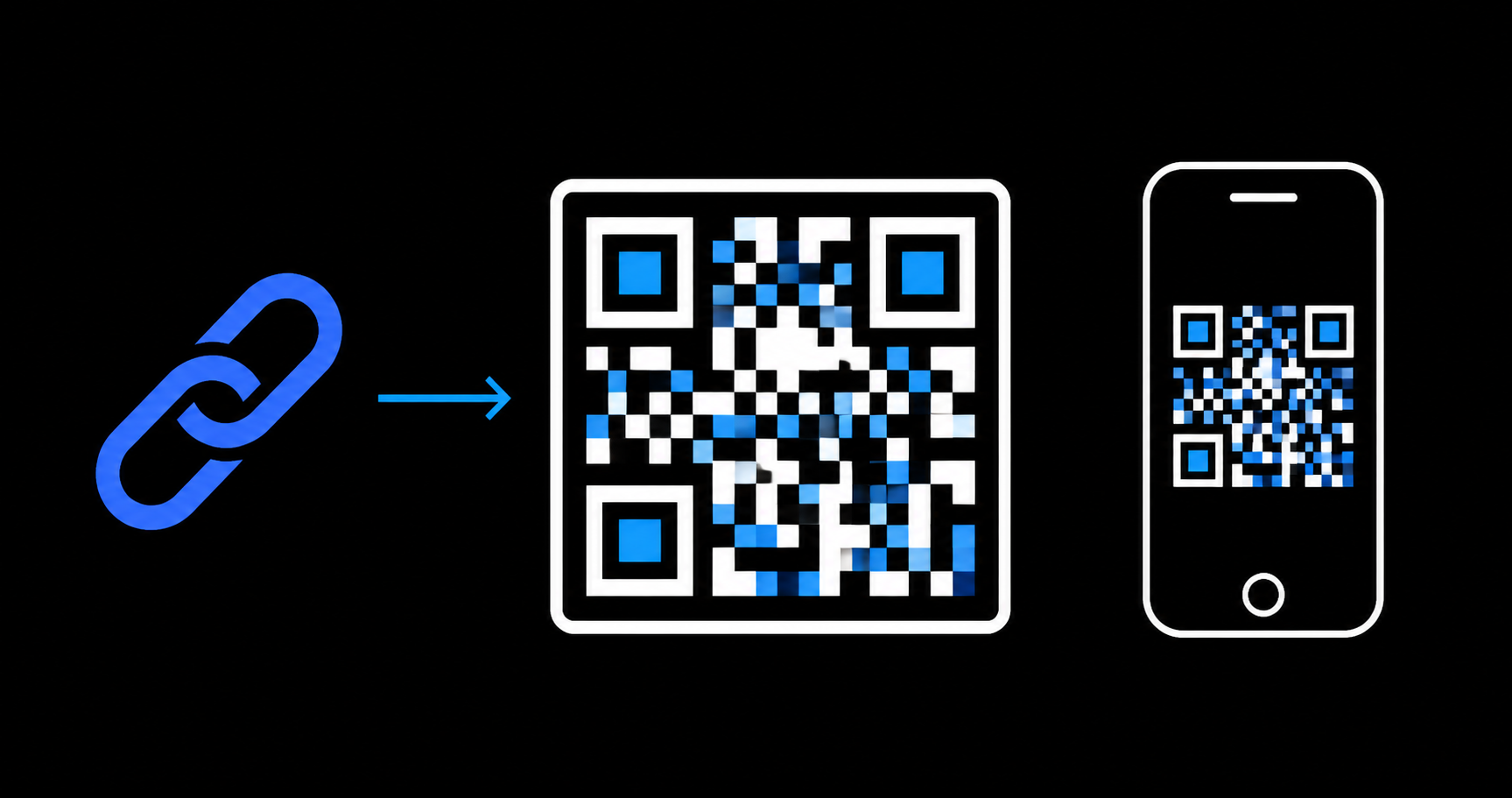
The fasttools.dev QR Code generator turns links, WhatsApp contacts, Wi-Fi networks, and short text into codes ready to share, print, or use in digital materials.
It runs in your browser with a live preview and PNG or SVG downloads. That makes it quick to create a QR Code for a page, menu, reception desk, event, or campaign.
Quick answer
To make a QR Code, open the QR Code Generator, choose the content type, fill in the fields, review the preview, and download the result in the format you need.
You can create QR Codes for URLs, WhatsApp, Wi-Fi, and plain text.
Create a QR Code for a link
Use URL mode when you want to send someone to a web page, digital menu, landing page, form, checkout, social profile, or campaign material. Paste the full address, preferably beginning with https://, then review the preview once the tool validates it.
Choose a size, adjust colors if needed, and download PNG or SVG.
Create a QR Code for WhatsApp
WhatsApp mode creates a code that opens a conversation through a wa.me link. It is useful on business cards, storefronts, flyers, email signatures, support pages, and printed materials.
Enter the number with its country code and area code. When scanned, the QR Code directs the person to begin a conversation with that number.
Create a QR Code for Wi-Fi
Wi-Fi mode is practical for receptions, offices, stores, events, and guest spaces. Enter the network name, select its security type, and provide the password when required. For an open or hidden network, select the appropriate option before downloading.
Many phones can fill in the connection details automatically from this QR Code.
Create a QR Code for text
Text mode is suitable for short messages, instructions, identifiers, notes, or any information that should not open a link. Write the content and download the QR Code for labels, packaging, internal signs, or quick instructions.
Customize size, colors, and a logo
The generator lets you adjust the QR Code size, margin, and error-correction level. For print or a larger design, use a higher resolution.
You can also change the dark and light colors. Keep a strong contrast: low-contrast or very light codes can be difficult to scan. If you add a centered logo, use Quartile or High error correction and avoid covering too much of the code.
PNG or SVG: which should you download?
Use PNG for an image that is ready to post, send, add to a presentation, or place quickly into a design. Use SVG when you need scalable, high-quality printing or later editing in vector software. SVG can be resized without losing sharpness.
Check before publishing
Before printing or sharing, scan the QR Code with more than one phone. Confirm that it opens the expected destination, the URL is correct, and the code works at realistic distances and lighting conditions.